
Troubleshooting the Tap to Pay App (Android)
1. Reader Error – NFC Disabled
If you see the error "Reader Error – NFC Disabled", it usually means that NFC is turned off on your device. To resolve this, you can enable your NFC reader in your device settings.
Open the Settings app.
Go to Connected Devices → Connection Preferences → NFC. (On some devices, it may also be under Settings → Connections → More Settings.)
Turn NFC on.
Restart your device. Some devices require a restart for NFC to work properly after enabling it.
Once NFC is enabled, your reader (which is needed to tap and read cards) should connect, and the app will function as expected.
2. Reader disconnects or won't connect
If your reader disconnects during a payment or won't connect even though NFC is enabled, follow these steps:
Verify NFC is properly enabled:
Open Settings → Connected Devices → Connection Preferences → NFC. (On some devices: Settings → Connections → More Settings.)
Make sure NFC is turned on.
Restart your device after enabling NFC — some Android phones require this for the setting to take effect.
If NFC is on but the reader still won't connect:
Close and reopen the Zeffy app. Swipe it away from your recent apps list and launch it again.
Sign out and back in. Tap the person icon → Sign out → Log back in with your Zeffy credentials.
Reinstall the app. Uninstall Zeffy and reinstall it from the Google Play Store.
Check your Android version. Android 12 or newer is recommended for the most stable Tap to Pay experience. Go to Settings → About phone → Software information.
Fallback options if connection still fails:
Use a QR code: From your Zeffy dashboard, share the form's QR code so the donor can complete payment on their own device.
Try another card: Test with a different card to rule out card-specific issues.
Try another device: If available, use a different Android phone to check if the issue is device-specific.
Tap to Pay uses your phone's built-in NFC reader — no external card reader is needed or supported. Make sure you're tapping the card to the back of your phone, near the camera area.
3. Unable to move past the Contribution Step of the Checkout Page
If you can't proceed past selecting a contribution amount, the issue may be caused by your phone's accessibility settings. Enlarged text or display adjustments can alter the page layout, which may cause buttons like Other or Continue to be hidden.
Here's what that might look like:
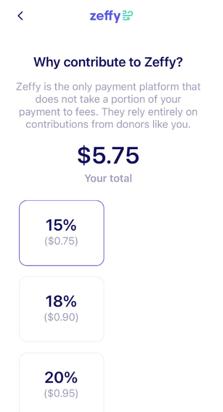
To resolve this, you'll need to reset certain text and display size settings on your device that may be affecting the app's layout.
1. Font Size
Go to Settings → Accessibility → Text and display (or Display → Font size on some devices).
Make sure the Font Size is set to default, not medium or large.
2. Display Size / Screen Zoom
Go to Settings → Display → Screen zoom or Display size.
Ensure it is set to default.
3. Bold Text
Go to Settings → Accessibility → Text and display → Bold Text.
Make sure Bold Text is turned off.
Once these settings are adjusted, the contribution page should display three suggested percentages, one box labeled Other and a contribute button at the bottom to proceed with your payment.