
How to delete or undo a data import
Undo an entire data import
To delete all of the data from an import, go to "Contacts"
Click "Add contacts" and select "Import contacts"
Click the "View past imports" button in the top right corner of the page
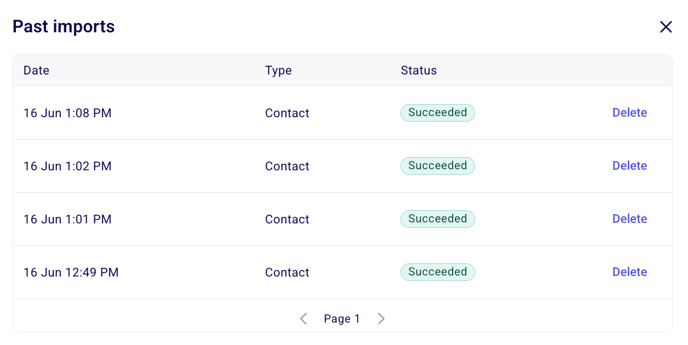
A pop-up titled "Past imports" will appear on your screen. Click "Delete" next to the import you wish to remove
Delete individual contact data
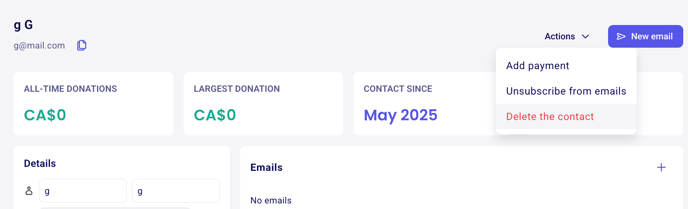
If you only wish to delete a few contacts from a contact import, go to "Contacts" and search for the contact you wish to delete. Their contact page will open to the side of your screen. Click the "Actions" button at the top to view the "Delete the contact" option:
⚠️ Contacts cannot be deleted in bulk.
Delete individual imported payments
You can delete imported payments one at a time, just like manually entered payments:
Go to "Payments"
Find the imported payment you want to remove and click anywhere on the row (avoid clicking the donor's name, which will take you to their contact page)
Click "Actions" in the top right-hand corner of the payment drawer
Click "Delete" to remove the payment
For payments that have an e-ticket or membership card associated with them, deleting the payment will automatically cancel the ticket or card as well.